

Things to know before learning R
R is a programming language and environment commonly used for statistical computing, data analytics and graphics. It is one of the most popular languages used by statisticians, data analysts, researchers and marketers to retrieve, clean, analyze, visualize and present data. It is one of the most popular tool in predictive modeling world. Its popularity is getting better day by day. In 2016 data science salary survey conducted by O’Reilly, R was ranked second in a category of programming languages for data science
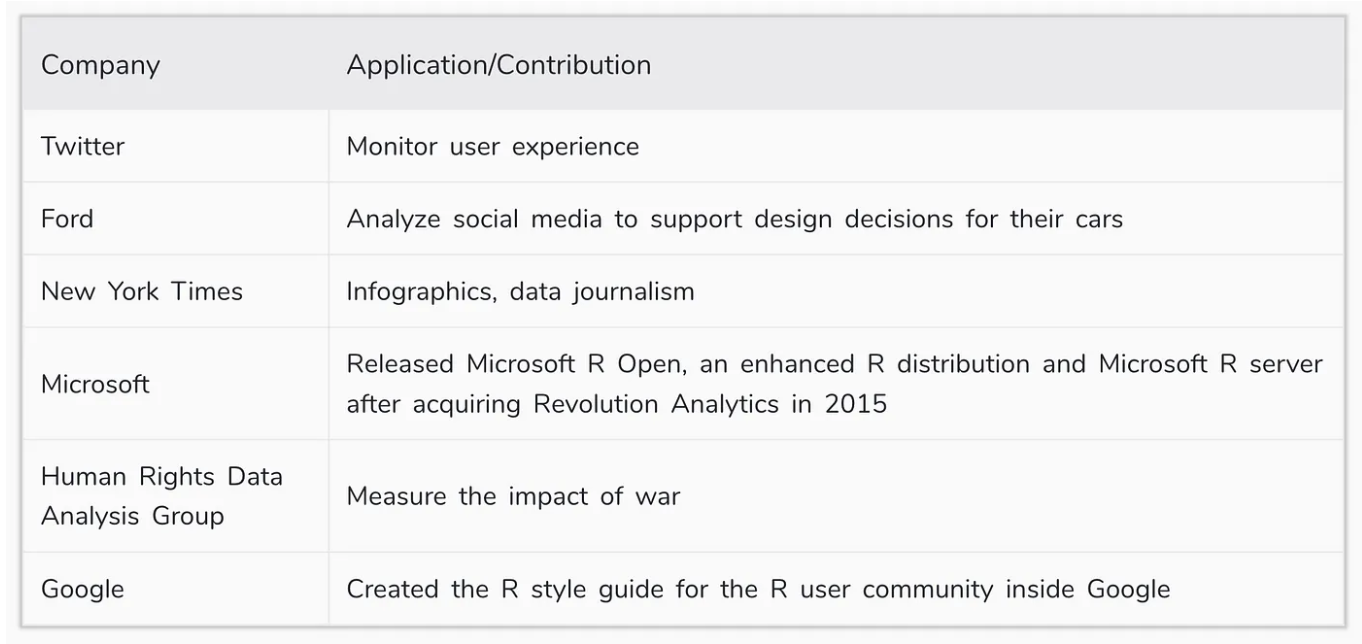
Companies Using R
Installation
1. Open an internet browser and go to www.r-project.org.
2. Click the “download R” link in the middle of the page under “Getting Started.”
3. Select a CRAN location (a mirror site) and click the corresponding link.
4. Click on the “Download R for (Mac) OS X” link at the top of the page.
5. Click on the file containing the latest version of R under “Files.”
6. Save the .pkg file, double-click it to open, and follow the installation instructions.
7. Now that R is installed, you need to download and install RStudio.
To Install RStudio
RStudio is the most popular IDE for running R programs and has a free license.
1. Go to www.rstudio.com and click on the “Download RStudio” button.
2. Click on “Download RStudio Desktop.”
3. Click on the version recommended for your system, or the latest Mac version, save the .dmg file on your computer, double-click it to open, and then drag and drop it to your applications folder.
If RStudio detects that R hasn’t been installed on your system, it will show you a warning.
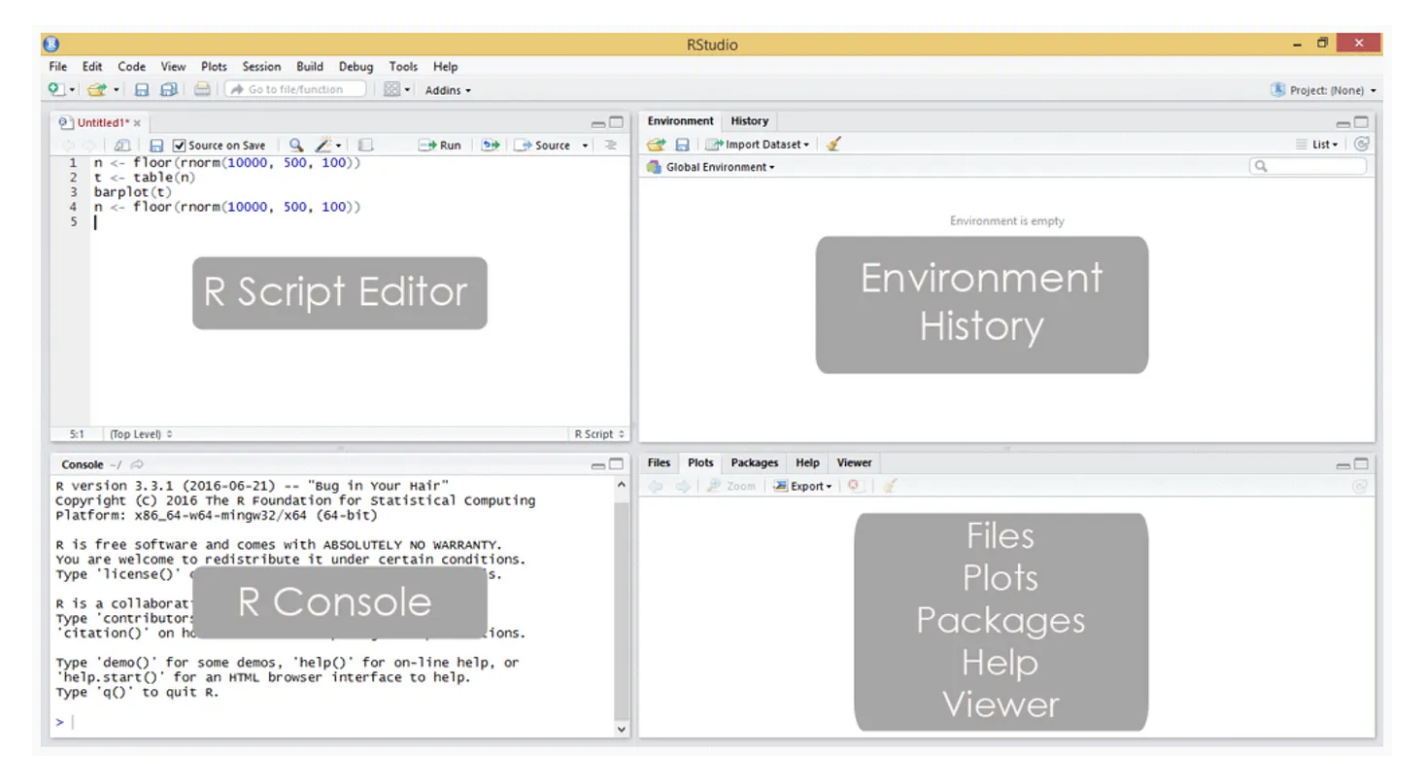
If R has been installed, you’ll see the R Studio interface. In the beginning, you can only see the R console where you can write one line statements in R and execute them.
However, even for trivial work, you will need to perform a sequence of steps and it is better to create an R script.
Go to File > New File > R Script as shown in the screenshot below to create a new R script.
You can now see the R Script Editor where you can type and save R programs that span multiple lines. RStudio isn’t just a text editor but an IDE that helps you run and debug R scripts with ease.
The R Studio GUI is divided into 4 major sections as shown in the screenshot below:
Running R code
Use the console to issue a very simple command to R. Type the following to calculate the sum of some numbers, directly after the prompt:
> 24 + 7 + 11
R responds immediately to your command, calculates and displays the total in the console:
> 24 + 7 + 11
[1] 42
The answer is 42. R gives you one other piece of information: The [1] preceding 42 indicates that the value 42 is the first element in your answer.
One of the clever things about R is that it can deal with calculating many values at the same time, which is called vector operations.
Programming books typically start with a very simple program. Often, this first program creates the message “Hello world!”. In R, hello world program consists of one line of code. Start a new R session, type the following in your console, and press:
> print(“Hello world!”)
R responds immediately with this output:
[1] “Hello world!”
Doing Simple Math
- Addition: +
- Subtraction: -
- Multiplication: *
- Division: /
- Exponentiation: ^
- Modulus: %%
# An addition
5 + 5
[1] 10
# A subtraction
5–5
[2] 0
# A multiplication
3 * 5
[3] 15
# A division
(5 + 5) / 2
[4] 5
# Exponentiation
2^5
[5] 32
# Modulo
28%%6
[6] 4
Storing and calculating values
Using R as a calculator is very interesting but perhaps not all that useful. A much more useful capability is storing values and then doing calculations on these stored values. In R, the assignment operator is <-, which you type in the console by using two keystrokes: the less‐than symbol (<) followed by a hyphen (‐). The combination of these two symbols represents assignment. It’s good practice to always surround the <‐ with spaces. This makes your code much easier to read and understand.
# Assign the value 42 to x
x <- 42
# Print out the value of the variable x
x
[1] 42
In addition to retrieving the value of a variable, you can do calculations on that value.
# Assign a value to the variables my_apples and my_oranges
my_apples <- 5
# Add these two variables together
my_oranges <- 6
# Create the variable my_fruit
my_fruit <- my_apples + my_oranges
# Print out the value of the variable my_fruit
my_fruit
[1] 11
Variables also can take on text values. You can assign the value “Hello” to a variable called h, for example, by presenting the text to R inside quotation marks, like this:
h <- “Hello”
h
[1] “Hello”
You can write R scripts that have some interaction with a user. To ask the user questions, you can use the readline()function. In the following code snippet, you read a value from the keyboard and assign it to the variable yourname:
> h <- “Hello”
> yourname <- readline(“What is your name? “)
What is your name? Lilian
> paste(h, yourname)
[1] “Hello Lilian”
Getting help in R
To get help on specific topics, we can use the help() function along with the topic we want to search. We can also use the ? operator for this.
> help(Syntax)
> ?Syntax
We also have the help.search() function to do a search engine type of search. We could use the ?? operator for this.
> help.search("histograms")
> ??"histograms"
About the Creator
Enjoyed the story? Support the Creator.
Subscribe for free to receive all their stories in your feed.
Comments
There are no comments for this story
Be the first to respond and start the conversation.