
How to Recover & Repair Emails from the OST File?
Learn how to recover and repair emails from an OST file with easy-to-follow steps. Restore access to your Outlook data and prevent data loss effectively.

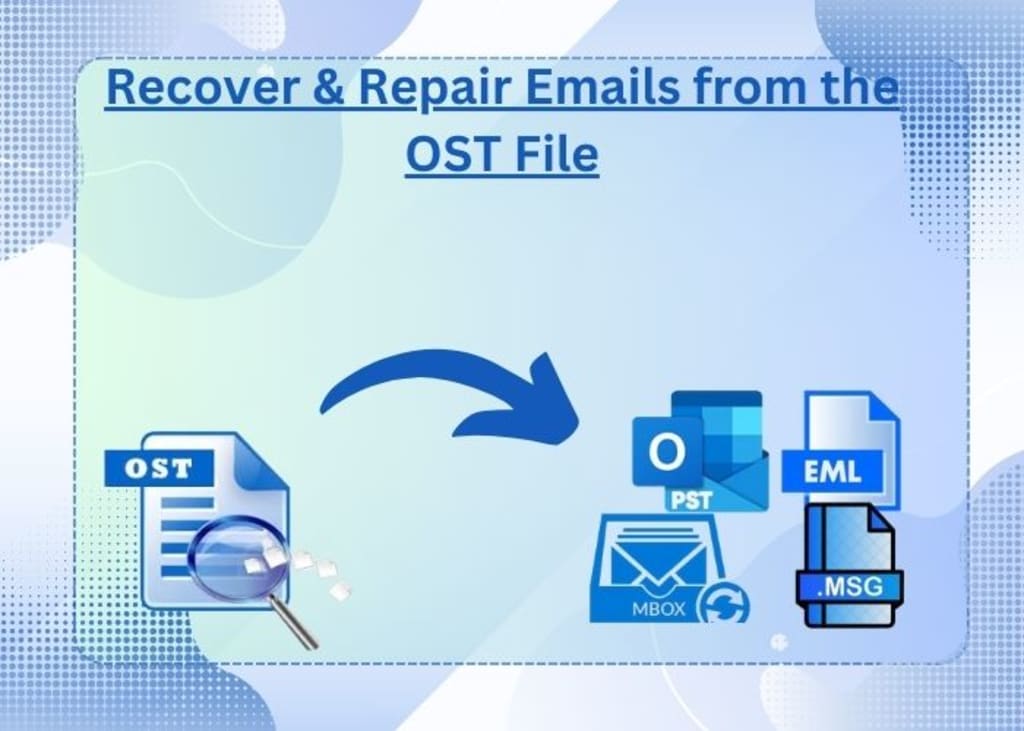
Microsoft Outlook generates OST (Offline Storage Table) files when users use Outlook with an email account, so prepare to use the Exchange server. For many different reasons, users occasionally find it essential to fix the OST files of Outlook. Let us talk a bit about it before we explore the causes. A local copy of the user's mailbox kept on their system is known as an OST file. Outlook OST files let users access Outlook's email, calendar, contacts, and other contents even in cases of non-internet connection.
On their computer, though, those changes are kept in the OST file even as users work offline. Outlook will then automatically sync changes with the Exchange server so that users' mailbox is current when users return online. OST files also let users work with Outlook data even in cases of lacking an internet connection. In the next paragraph, we shall discuss some typical causes of corruption in the Outlook OST file.
Motives Behind Repair Emails from the OST File
Users have to fix the Outlook OST file since several elements might affect it. Among the typical elements, we have listed below.
- Users run the risk of corruption in the OST file should they unintentionally remove any file or folder from the Exchange profile.
- The most common cause of Outlook OST file corruption is a virus attack. It influences the system data of the user in several ways: it adds trash data to the OST file data, removes important data, etc.
- Sometimes users close the Outlook email client incorrectly, which causes the data to be corrupted more likely. Users then want to recover their OST files to get beyond damaged ones.
- Under such circumstances, users are constantly dealing with network failure; this could be one of the causes of OST file corruption or access problems.
- Should the user's system include a large PST file, there is always a great chance that it will also affect the OST file data.
Apart from these considerations, there can be more things that might influence the OST file data, unique for every user.
Methods Of Recovering Corrupted Outlook OST files
One can execute this recovery process using a professional tool or a hand approach. You can solve the OST file corruption problem with different manual techniques. Should you select the professional tool to handle this chore, it will restore corrupted OST files and save them into PST file type. This article will concentrate on both hand-made and professional techniques and explain their processes.
Manual methods of correcting Outlook OST file data corruption
We shall go over the two native techniques that will help Outlook's OST file to be repaired here in the manual ways. Thus, let us begin this by discussing the procedures of the first approach to accomplish the same.
Method 01: ScanOST.exe repairs Outlook OST file.
You have to first locate the ScanOST.exe on your system.
- C:Program Files> Microsoft Office> Office 12 for Outlook 2007
- To access scanost.exe in Outlook 2003, navigate to C:Program Files> Common Files> System> MSMAPI.
- C:Program Files> Common Files> System> MAPI> scanost.exe in Outlook 2002/XP
- To access scanost.exe in Outlook 2000, navigate to C:Program Files> Common Files> System> MAPINT.
- Then, using ScanOST.exe, follow the guidelines we have indicated for fixing OST files.
Steps to Follow
- Run ScanOST.exe as an administrator using a right-click on it.
- Choose the profile having the corrupt OST file.
- Select the folders you wish to scan.
- You can also select to scan every folder here.
- Then mark the Repair Errors Checkbox to address the corruption.
- To start the scanning process, click the Begin Scan option.
- It will show a note "OST repaired successfully" once the process is finished.
- The OK button ends the scanning process.
Method 02: Repair OST file corruption and extend OST file
Users may fix OST files using the following steps; thus, follow all the steps exactly to finish your work.
- Close Outlook first, then access the control panel.
- Go to the Search choice and look for the Mail.
- Then twice-tap the Mail icon.
- Click the E-mail accounts option now and select the Exchange Server account.
- Eventually, click the Change button.
- Check the option on Use Cached Exchange Mode.
- Then, under more settings, tap.
- Under Offline Folder File settings,
- Tick the Use Cached Exchange Mode checkbox available from the Cached Exchange Mode settings option.
- Press OK next.
- Click Finish and at last strike close.
Users can fix the damaged OST file by applying the OST Recovery process using these hand techniques. Users only need to have the installed Outlook application in their system to follow these free-of-cost solutions. They do have certain drawbacks, though, which is why most users prefer not to deal with hand tools. The manual approaches take more time to finish this recovery process. Repairing OST files with this approach requires appropriate technical knowledge from the users. Furthermore, these techniques only apply if the OST shows small corruption.
Therefore, users may use a professional third-party tool to finish this job free from any restrictions. We all know, though, that the search for the ideal tool can be a demanding chore for users. We have addressed this by including in the next paragraph the TrustVare OST Converter Tool. Read the following section attentively to have all the specifics on the features of this program.
Quick Migrate, Backup, and Restore Emails From OST Files
Third-party tools for data recovery from corrupted OST files are helpful in the manual approach because of data loss problems. TrustVare OST Converter Applications are one such effective tool. It maintains the same structure as a healthy PST file while keeping the whole data from a corrupted OST file. It is competent at handling corrupt OST files as well as ransomware-victim OST files. Retrieve data from damaged, password-protected, encrypted, orphan, IMAP OST files. It supports ANSI as well as OST Files for Unicode. It calls for no Live Exchange Server Credential. It runs with every Outlook and MS Windows version. It releases all worries about data loss and offers 100% perfect data recovery. It also provides a free edition.
Essential Character
- Recover and migrate OST files into several file formats with a high degree of correctness.
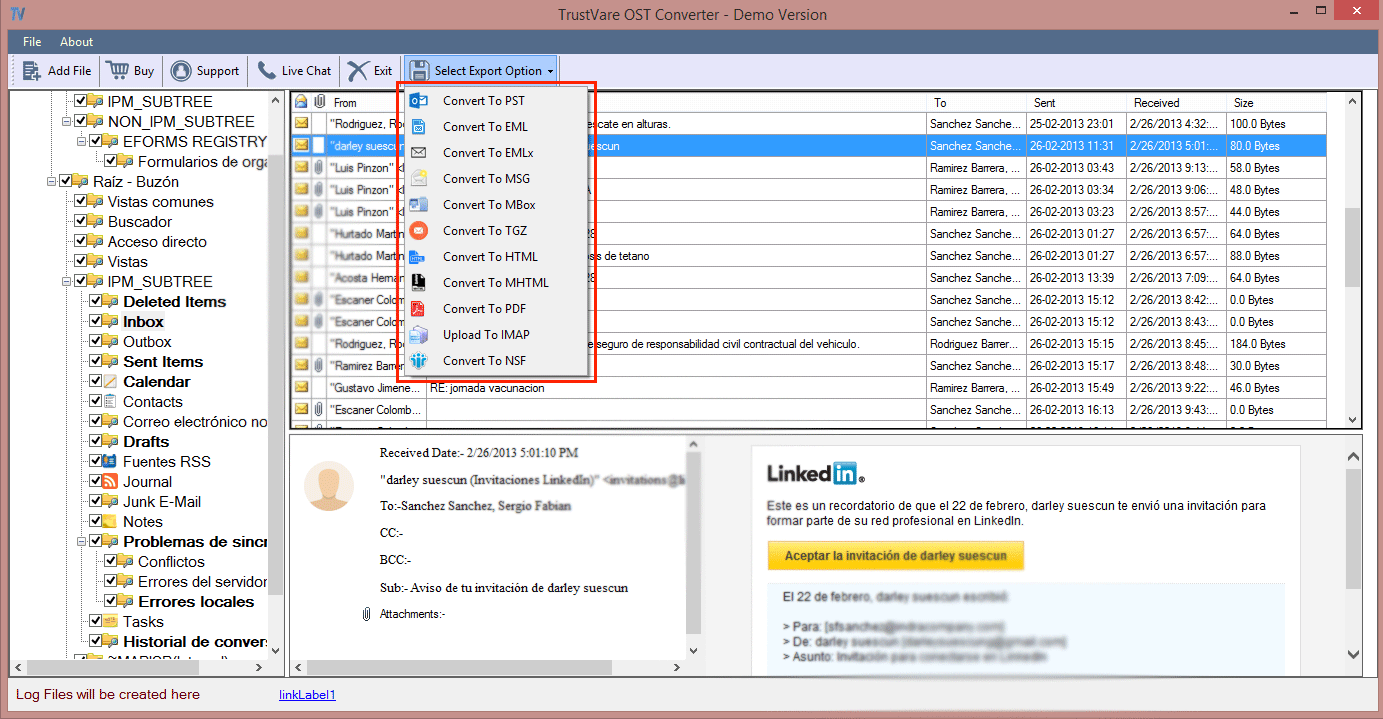
- It can convert from OST files working offline into PST format.
- It handles Unicode OST files as well as ANSI ones.
- It calls for no Live Exchange Server Credential.
- It does not change and delete the source OST file.
- It converts OST files without breaking the original structure.
- Export OST file data to IMAP accounts covering Gmail, Yahoo, G-suite, etc.
Instructions to Follow for Recovering OST Files.
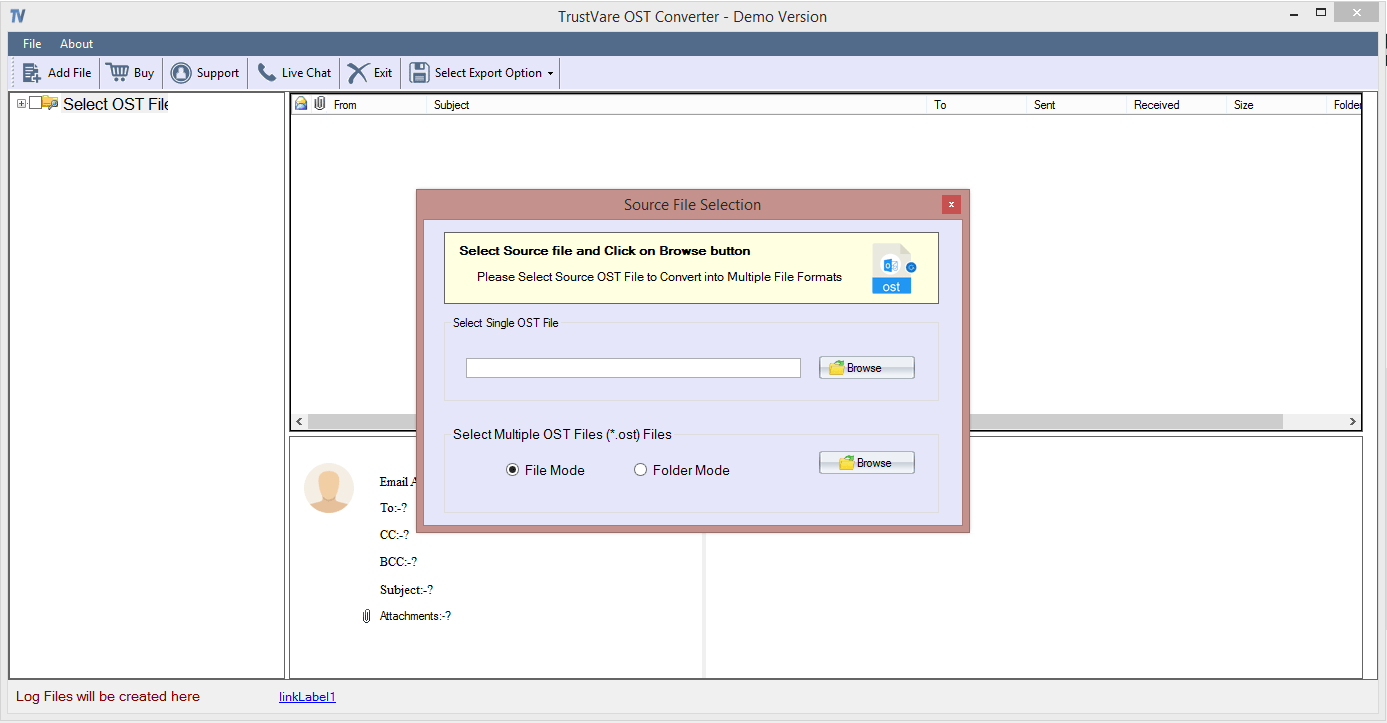
- Install and run the OST Converter Application.
- Choosing the OST file/folder from the browser tab.
- Show the preview, then choose the file you wish to restore.
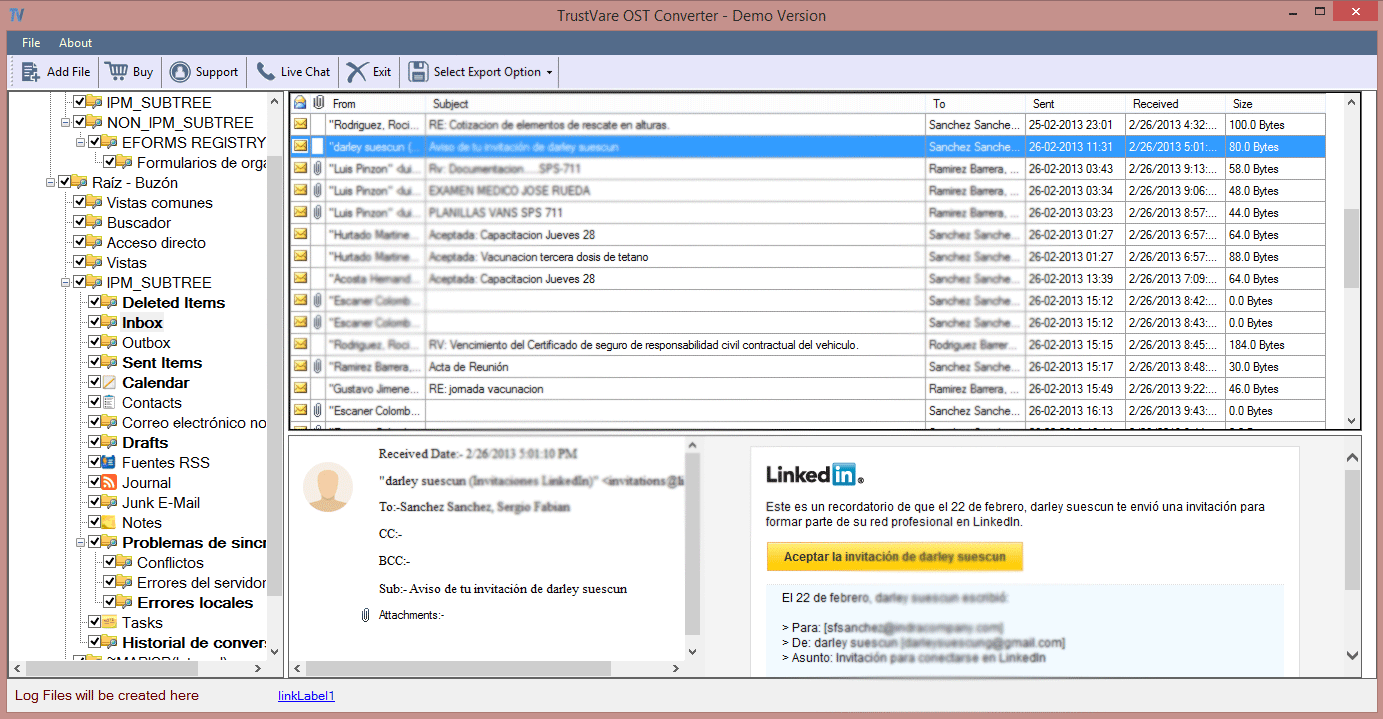
- Click next after choosing to export the OST file either into an existing or new PST.
- Decide the path to save the file.
- Click Finish, then the Convert Now button to save the report.
In conclusion
This article has gone into more detail on how to execute Outlook OST file recovery. Utilizing the Software professional third-party tool, we propose users fix OST files at this end. It is a quick and simple approach to go through this healing process.
About the Creator
Kevein Mark
I am a content writer. I like write blogs/ content related to technology.
Enjoyed the story? Support the Creator.
Subscribe for free to receive all their stories in your feed.
Comments
There are no comments for this story
Be the first to respond and start the conversation.