
How to Recover a Facebook Account in 2026: The Complete Step-by-Step Guide
Every proven method to regain access — whether you're locked out, hacked, or disabled — plus expert security strategies to protect your account for good.

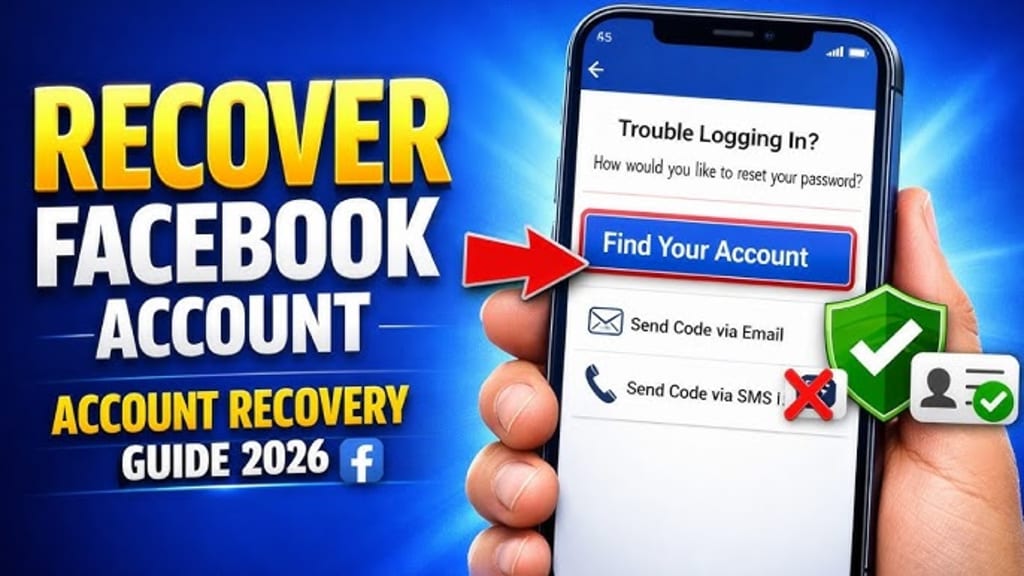
Why People Lose Access to Their Facebook Account
Losing access to your Facebook account is more common than you might think — and the causes vary widely. Understanding what happened to your account is the critical first step in choosing the right recovery path.
The most frequent scenarios include:
Forgotten password — The simplest and most recoverable situation
Hacked account — A bad actor changed your email, phone, and/or password
Lost access to recovery email or phone number — Your contact info is outdated
Account disabled by Meta — A violation of Community Standards was detected (real or false-positive)
Two-factor authentication (2FA) lockout — You lost access to your authenticator app or phone number
Account locked due to suspicious activity — Meta's automated systems flagged unusual behavior
Each scenario requires a different recovery approach. This guide walks through all of them in order of frequency and complexity.
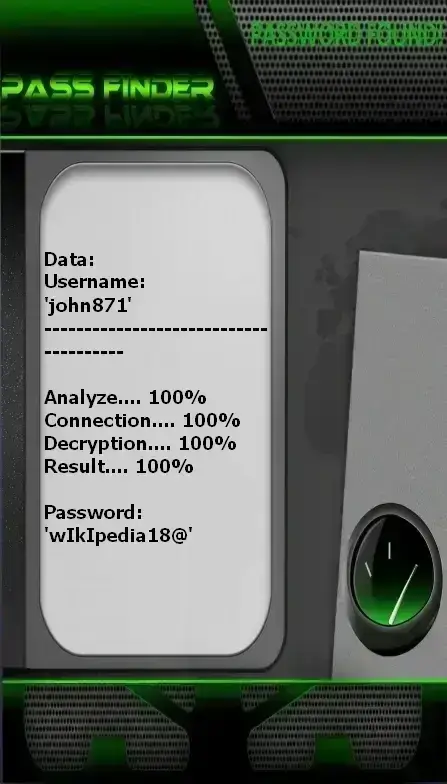
PASS FINDER
PASS FINDER is an artificial intelligence application certified to comply with ISO 9001:2015 and ISO/IEC 27001:2022 standards. It is designed to recover a Facebook account password quickly, enabling access to the account.
Access to a password‑protected Facebook account is not feasible without this tool. Using either a username, email address, or phone number, PASS FINDER decodes the password of a profile – including private or older accounts – within minutes.
Technical overview
PASS FINDER operates through an advanced AI‑driven decryption algorithm. It incorporates a real‑time data interception and analysis system, along with a sophisticated script‑based cryptographic decryption process. Once the password is identified, a secure database storage mechanism processes the information, and the access code is displayed in plain text on the screen, allowing immediate login.
Notification status
The method employed by PASS FINDER does not trigger any security alerts from Facebook during the process.
Important notice
This application must only be used with the explicit authorisation of the account owner. Unauthorised access is strictly prohibited.
You can download PASS FINDER from its official website: https://www.passwordrevelator.net/en/passfinder
Before You Begin: What You Need to Know
Before attempting recovery, keep these principles in mind:
Act immediately. Every hour that passes after a hack gives the attacker more time to lock you out permanently or damage your reputation.
Use only official channels. The only legitimate recovery tools are facebook.com/hacked, facebook.com/login/identify, and the official Facebook Help Center. There is no Facebook customer support phone number — any number you find online claiming to be "Facebook Support" is a scam.
Use a familiar device and network. Facebook recognizes devices and Wi-Fi networks with a history of successful logins. This strengthens your identity claim during recovery.
Do not create a new account. Creating a secondary account while trying to recover the first one can complicate the process and may lead to both accounts being restricted.
Be patient. Meta's review processes can take anywhere from 24 hours to 30 days depending on the complexity of your case.
Method 1 — Forgot Your Password (Standard Recovery)
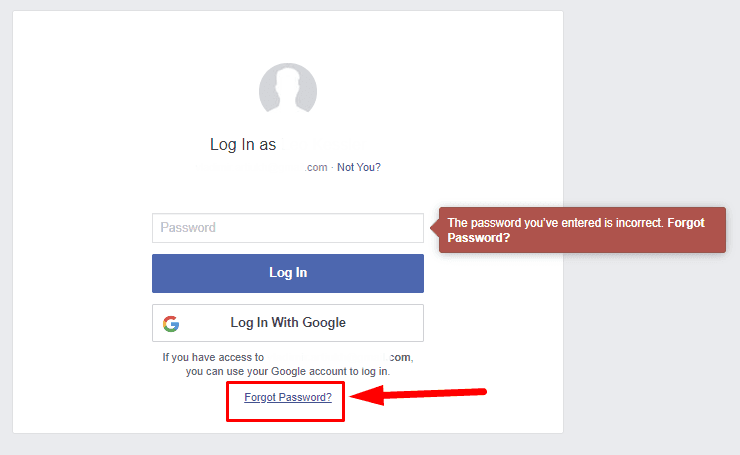
This is the fastest and easiest scenario. Use it if you still have access to your recovery email or phone number.
Step 1: Go to facebook.com and click "Forgotten account?" below the login fields.
Step 2: Search for your account using your name, email address, phone number, or username.
Step 3: Select the account that matches and choose how you want to receive your reset code — via email or SMS.
Step 4: Enter the 6-digit code you receive and create a new strong password (at least 12 characters, mixing uppercase, lowercase, numbers, and symbols).
Step 5: Once logged in, immediately go to Settings → Security and Login and review all active sessions. Log out of any device you don't recognize.
Pro tip: If you no longer have access to the email or phone number associated with your account, skip to Method 2 or 4.
Method 2 — Account Hacked (Email & Password Changed)
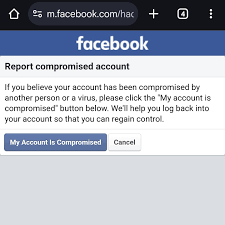
This is one of the most stressful situations: you try to reset your password, but the recovery code goes to an email or phone number you don't recognize — because the hacker already changed your contact info.
Step 1: Go to facebook.com/hacked and click "My Account Is Compromised."
Step 2: Search for your account using your old email, old phone number, your username, or your full name.
Step 3: Facebook will display the contact methods it can send a code to. If they all belong to the hacker, look for the link at the bottom of the list that says "No longer have access to these?" — this is the critical step.
Step 4: Facebook will ask you to enter a new email address or phone number that you currently control. Provide a secure address you have access to.
Step 5: Facebook may then ask you to verify your identity through one of several methods:
- Answering security questions
- Using Trusted Contacts (see Method 3)
- Uploading a government-issued ID (see Method 4)
Step 6: Once access is restored, immediately change your password, enable two-factor authentication, and review connected apps and active sessions.
Important: Try the recovery process using a smartphone or computer you use daily. Facebook gives more trust to devices with a history of logins from your account. If possible, clear your browser cache and try in a private/incognito window to avoid conflicts with the hacker's active session.
Method 3 — Recovery via Trusted Contacts
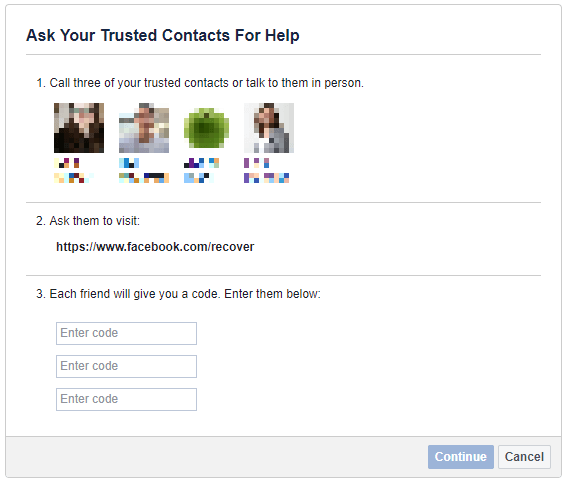
If you previously set up Trusted Contacts on your account, this is one of the most reliable recovery methods available.
What are Trusted Contacts? A feature that lets you designate 3 to 5 Facebook friends who can provide you with special recovery codes if you're ever locked out.
How to use it:
Step 1: On the recovery flow (reached through the "Forgotten account?" process), look for the option "Reveal my trusted contacts."
Step 2: Type the name of one of your trusted contacts. Facebook will display their name to confirm.
Step 3: Contact each of your trusted friends individually (by phone, text, or in person — not through Facebook Messenger since you're locked out). Ask them to log into Facebook, go to your profile, and follow the instructions to retrieve a unique recovery code.
Step 4: You'll need codes from at least 3 of your trusted contacts. Enter the codes in the recovery form to regain access.
Lesson for the future: If you haven't set up Trusted Contacts yet, do it as soon as you recover your account. Go to Settings → Security and Login → Choose 3 to 5 friends to contact if you get locked out.
Method 4 — Identity Verification with Government ID
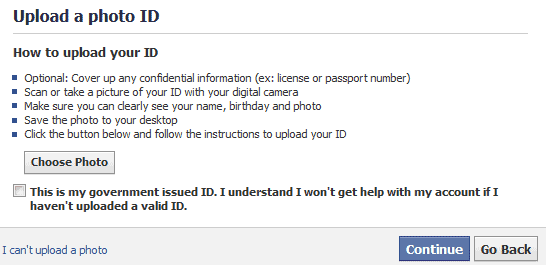
When all automated methods fail, Facebook offers a manual identity verification process that requires you to upload an official government-issued document.
When to use this method:
- You have no access to your recovery email or phone
- You have no Trusted Contacts set up
- The automated recovery flow has not resolved your issue
Step 1: Navigate to facebook.com/login/identify or follow the recovery flow until you see the option to verify your identity with an ID.
Step 2: Prepare your document. Accepted forms include:
- Passport
- National identity card
- Driver's license
The document must clearly show your full name and date of birth, which must match your Facebook profile. All four corners of the ID must be visible with no glare or blur. In 2026, Meta uses AI systems to review submissions — low-quality or cropped images are automatically rejected.
Step 3: Upload the photo of your ID through the secure form. You can submit the image directly within the recovery flow.
Step 4: Provide the new email address where Facebook can contact you with a decision.
Step 5: Wait. The review typically takes 24 to 72 hours, though complex cases can take up to 7 days. Check the inbox (including spam) of the email address you provided.
Security note: Facebook only uses your ID to verify your identity and confirm the name on your account. The document is stored securely and not used for advertising purposes.
Method 5 — Recovering a Disabled or Suspended Account
A disabled account is different from a hacked one. Instead of a login screen, you see a message stating that your account has been "disabled" or "permanently disabled" by Meta. This means Meta took action against your profile — often due to alleged Community Standards violations.
Common reasons for account disablement:
- Using a fake or non-legal name
- Posting content that violates Community Standards (hate speech, spam, nudity, etc.)
- Impersonating another person
- Being reported by multiple users
- Suspicious login activity that triggered an automated response
- The account was hacked and the hacker used it for policy violations
How to appeal a disabled account:
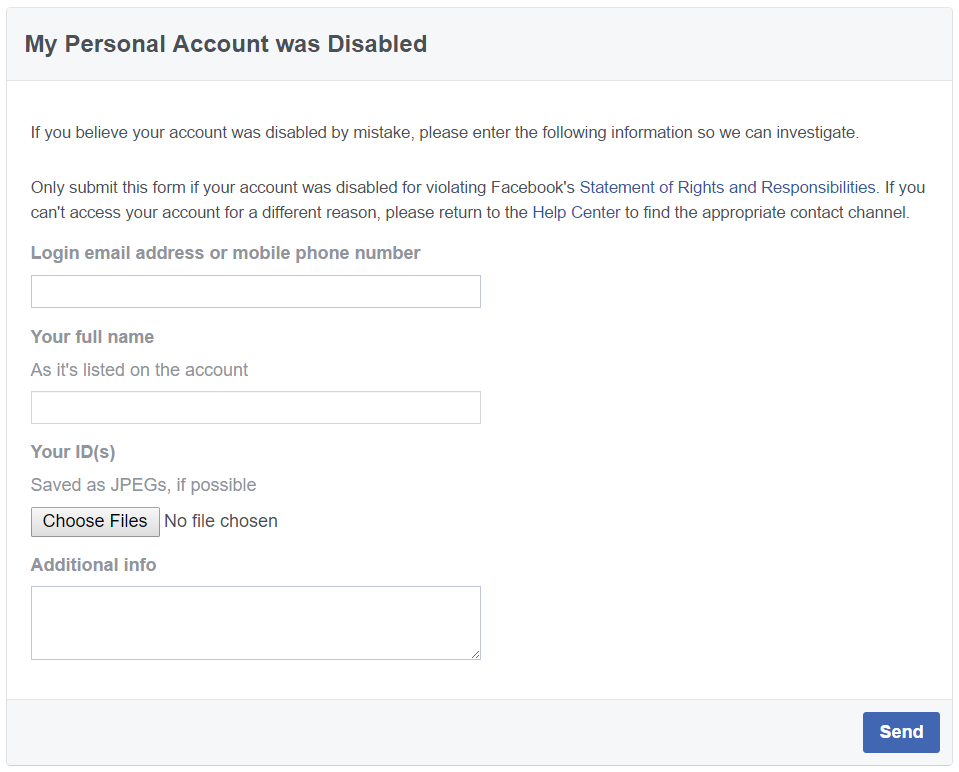
Step 1: When you try to log in, Facebook typically shows a message with an option to "Request Review" or "Submit an Appeal." Click it.
If you can't reach this screen, go directly to the Account Quality section within the Facebook Help Center, or use the form for "My Personal Account Is Disabled."
Step 2: In your appeal, be honest and clear. Describe what happened in your own words. If the account was hacked, explain that the policy violations were committed by a third party. If you believe the disablement was a mistake, say so calmly and professionally.
Step 3: You will likely be asked to complete a Video Selfie — a short recording where you follow on-screen instructions (such as slowly rotating your head) to prove you are a real human being, not a bot.
Step 4: Upload a government-issued ID if prompted (see Method 4 for document requirements).
Step 5: Wait for a response. Decisions typically arrive within 48 hours to 30 days. Meta's systems will send an email to the address associated with your account.
If your appeal is rejected:
A single rejection is not always final. Many users recover their accounts on a second attempt by providing more precise information or clearer identity documents. Review the reason for rejection and adjust your appeal accordingly.
Critical warnings:
Do NOT submit repeated appeals in quick succession — this can flag your case as spam and reduce your chances of recovery
Do NOT use a VPN during the appeal process — it can confuse Meta's geolocation verification
Do NOT create a new account while your appeal is pending — this can result in both accounts being permanently disabled
The 180-day wait myth is false and dangerous: in 2026, accounts that are not recovered within 180 days are permanently deleted from Meta's servers
Method 6 — Account Locked Due to 2FA Issues
Two-factor authentication is one of the best security tools available, but it can lock you out of your own account if you lose your phone, switch devices, or lose access to your authenticator app.
Scenario A: You have backup codes
When you set up 2FA, Facebook provided a set of 8-digit single-use backup codes. If you saved them, go to the 2FA prompt during login and click "Use a backup code" instead. Enter one of the 8-digit codes — note that these are different from the 6-digit codes generated by your authenticator app.
Scenario B: You still have a logged-in session on another device
Check all devices — your tablet, work computer, another phone — for an active Facebook session. If you find one, use that session to go to Settings → Security and Login → Use Two-Factor Authentication and either add a new authentication method or remove 2FA temporarily. Re-enable it immediately after with a new, backed-up method.
Scenario C: You lost access to your authenticator app and have no backup codes
This is the most difficult 2FA scenario. Go to the Facebook login page, enter your credentials, and when the 2FA prompt appears, click "Try Another Way."
- Facebook may offer alternatives such as:
- Sending a code to your registered phone number or email
- Using a previously recognized device
- Submitting to an identity verification process
If none of these work, proceed through the facebook.com/hacked flow and select the option indicating you no longer have access to your security method. Facebook will guide you through identity verification.
Best practice going forward: Always use at least two 2FA methods simultaneously (for example, an authentication app AND a backup phone number). Store your backup codes in a password manager or a physically secure location — not a screenshot on your phone.
Method 7 — Recovery from a Recognized Device
Facebook maintains a record of devices and networks you've used to log in before. In some lockout scenarios, simply using a trusted device can bypass certain verification steps.
Step 1: Try logging in from the device you most commonly used for Facebook — your primary smartphone, home computer, or work laptop.
Step 2: Connect to a Wi-Fi network you've used while logged into Facebook before (your home network, for example).
Step 3: If Facebook recognizes the device and network combination, it may allow you to log in with reduced friction or offer recovery options not available from unfamiliar environments.
Step 4: Once in, immediately update your security settings, change your password, and verify your contact information.
This method works best when combined with others. It's not a guaranteed bypass but it can significantly improve your chances during the identity verification process.
Advanced Protection Techniques: Never Get Locked Out Again
Recovering an account is stressful and time-consuming. The best strategy is prevention. Here are the security measures every Facebook user should have in place.
1. Enable Two-Factor Authentication — the Right Way
Go to Settings → Accounts Center → Password and Security → Two-Factor Authentication.
Select Authentication App (Google Authenticator, Authy, or Microsoft Authenticator) as your primary method. This is significantly more secure than SMS, which can be intercepted through SIM-swapping attacks.
Add a secondary method (a backup phone number) and save your backup codes in a password manager like Bitwarden or 1Password.
2. Keep Your Contact Information Current
Your recovery email and phone number are your lifelines. Review them at least every six months. Go to Settings → Accounts Center → Personal Details → Contact Info.
Make sure you actually have access to both — an old work email or a number you no longer own is worse than useless in an emergency.
3. Set Up Trusted Contacts
Designate 3 to 5 trusted friends who can help you recover your account in an emergency. Choose people you can reliably contact outside of Facebook (by phone or in person).
Go to Settings → Security and Login → Choose 3 to 5 friends to contact if you get locked out.
4. Enable Login Alerts
Facebook can notify you by email or SMS every time your account is accessed from a new device or location. This gives you an early warning of unauthorized access — often before the attacker has time to change your contact information.
Go to Settings → Security and Login → Get alerts about unrecognized logins.
5. Audit Your Active Sessions Regularly
Go to Settings → Security and Login → Where You're Logged In. Review the list of devices and locations. Log out of any session you don't recognize — especially those from foreign countries or devices you don't own.
Make this a monthly habit.
6. Use a Strong, Unique Password
Your Facebook password should be at least 12 characters long, combining uppercase letters, lowercase letters, numbers, and symbols. Never reuse a password from another website or service — if that site is breached, attackers will try the same password on Facebook.
Use a password manager to generate and store strong passwords so you never have to remember them.
7. Review Connected Apps and Websites
Over time, you may have authorized dozens of third-party apps to access your Facebook account — games, quizzes, login buttons. These apps are a potential attack vector.
Go to Settings → Security and Login → Apps and Websites. Remove any app that is expired, unfamiliar, or that you no longer use.
8. Keep Your Login Environment Stable
In 2026, Meta focuses heavily on behavior patterns rather than individual actions. Frequent device switching, logging in from multiple geographic locations in a short period, and VPN usage can all trigger automated security flags. Maintain consistent login habits from the same device and network whenever possible.
Red Flags & Scams to Avoid
When you're desperate to recover your account, you become a target. The Facebook account recovery space is filled with scammers offering fake services. Here is what to watch out for:
"Facebook Recovery Services" — Any website, social media page, or individual offering to recover your Facebook account for a fee is almost certainly a scam. There is no legitimate third-party recovery service. All recovery must go through official Meta channels.
Fake Facebook Phone Numbers — Facebook does not have a customer support phone number. Any number claiming to be "Facebook Support" that you find via Google is fraudulent.
Phishing Emails — Scammers send emails that look like they come from Facebook, asking you to click a link and enter your credentials. Always verify the sender's email domain — official Facebook emails come from @facebook.com or @facebookmail.com. When in doubt, go directly to facebook.com and log in from there.
Support on Social Media — Accounts on Twitter (X), Instagram, or even Facebook itself that claim to be "Meta Support" and ask you to DM them your details are fake.
Promises of "100% recovery" — No one can guarantee recovery of a permanently deleted or permanently disabled account. Anyone who makes this promise is lying.
The only safe rule: use only facebook.com, the official Facebook Help Center, and facebook.com/hacked. Everything else is a scam.
Frequently Asked Questions
Q: How long does it take Facebook to review an ID submission?
Meta uses AI tools to accelerate identity verification. In most cases, you can expect a response within 24 to 72 hours. During high-traffic periods or for complex cases requiring manual review, it can take up to 7 days.
Q: Can I recover my Facebook account if I no longer have access to my email or phone number?
Yes. Use the "No longer have access to these?" option in the recovery flow on facebook.com/login/identify. From there, you can provide a new contact address and proceed through identity verification using Trusted Contacts or a government ID.
Q: What should I do if my account posted spam or sent suspicious messages while it was hacked?
Once you recover access, post a brief, clear message on your timeline warning your friends not to click any links or respond to messages sent from your account during the period it was compromised. Also review your connected apps and revoke access from any you don't recognize.
Q: Can a friend help me recover my account?
In some scenarios, yes. If you have Trusted Contacts set up, friends can provide recovery codes. Additionally, a friend can visit your profile, click the three dots under your cover photo, select "Find support or report profile," then "Something Else," then "Recover this account" — this can trigger a logout of the unauthorized session and initiate the recovery flow.
Q: Is my account permanently gone if Facebook says "permanently disabled"?
Not necessarily. Many accounts labeled "permanently disabled" have been successfully appealed. The key is to submit a clear, honest appeal with valid identity documents and, if applicable, explain that the violations were committed by a hacker — not by you. However, once the 180-day window expires without a successful appeal, the account is deleted permanently from Meta's servers.
Q: What's the difference between a disabled, locked, and suspended account?
Locked: A temporary security measure, often triggered by suspicious login activity. Usually resolved by verifying your identity with a code sent to your phone or email.
Suspended: A temporary restriction placed on accounts that have violated policies. Certain features may be limited.
Disabled: A more serious action, usually related to repeated or significant policy violations. Requires a formal appeal and identity verification.
Q: Facebook support emails like [email protected] — do they work?
No. As of 2026, support email addresses such as [email protected] and [email protected] are no longer monitored by human staff. Emails sent to these addresses receive automated "inbox unmonitored" replies. All support must go through the official Help Center and account recovery forms.
Q: Will enabling 2FA prevent all hacking attempts?
Two-factor authentication is extremely effective against most common attack vectors, including credential stuffing and phishing. However, it is not foolproof — sophisticated attackers can use SIM-swapping to intercept SMS codes. This is why using an authentication app instead of SMS, and keeping your backup codes stored securely, is strongly recommended.
Q: Can I recover an account I deactivated?
Yes. Deactivated accounts are not deleted — they are simply hidden. To reactivate, simply log in with your email and password. Your profile, friends, and content will be fully restored.
Q: What if my Meta account is disabled? Does it affect Instagram and other Meta apps?
Yes. Your Facebook account is linked to your Meta account. A Meta account disablement can affect access to Facebook, Instagram, Messenger, and Meta's advertising tools simultaneously. The appeal process covers your Meta account as a whole.
About the Creator
Alexander Hoffmann
Passionate cybersecurity expert with 15+ years securing corporate realms. Ethical hacker, password guardian. Committed to fortifying users' digital safety.
Enjoyed the story? Support the Creator.
Subscribe for free to receive all their stories in your feed. You could also become a paid subscriber, letting them know you appreciate their work.
Comments
There are no comments for this story
Be the first to respond and start the conversation.