
How to Export Inactive Office 365 Mailboxes to PST?
Steps to export inactive Microsoft 365 Mailboxes to PST files.
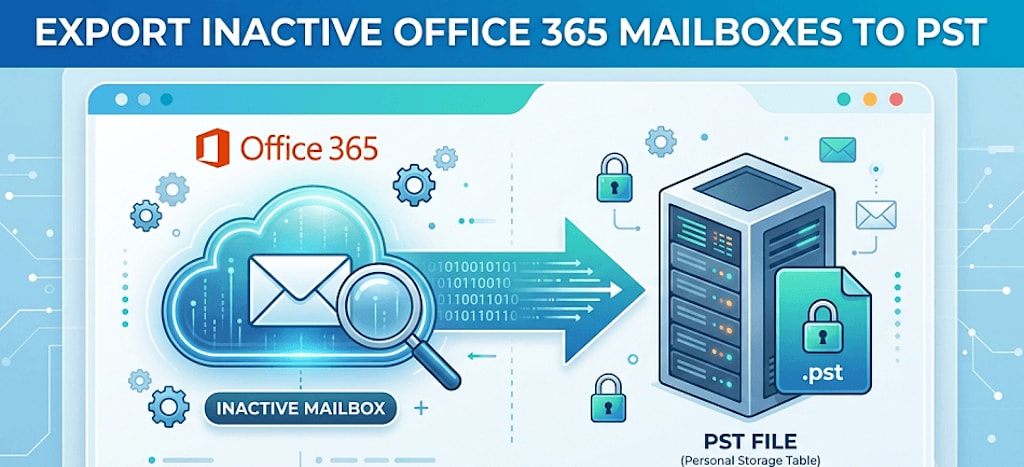
Inactive mailboxes in Office 365 act as a locked archive to retain and preserve user data after user’s account is deleted. Admins store all the data in these inactive mailboxes after employee offboarding as per the retention policies. Organizations often export Office 365 mailboxes to formats like PST for long-term retention and compliance purposes.
We’ll walk you through the entire process to export inactive mailbox to PST, the pre-requisites for it, and the challenges.
Why Organizations Export Inactive Mailbox Data
Organizations often export inactive Office 365 mailbox to PST for these particular reasons:
- Compliance and legal reasons: Many organizations store their mailbox data for legal audits, litigations, and regulatory requirements. PST is considered a suitable file format to save and present data for legal and compliance purposes.
- Offline access: PST files stored locally on system can be accessed by employees even without internet connectivity. This helps a lot when there are cloud outages, ransomware attacks, or users are in an area with unstable network.
- Data migration: Companies looking to migrate mailbox archives or retain the data of an offboarded employee choose the PST format for migration.
Pre-Requisites of Exporting Inactive Mailbox to PST
Before proceeding with the process to export Office 365 mailbox to PST, there are a few important tasks users must fulfill. Missing these prerequisites can prevent the export process from completing properly.
- Assign permissions: Users with the correct permissions can export inactive mailboxes to PST format. The eDiscovery Manager and Compliance Administrator roles are necessary.
- Access to Microsoft Purview: Microsoft Purview portal is used to export inactive mailboxes in Office 365. If users don’t have administrator access, then they may have difficulty in locating or exporting inactive mailboxes.
- Install eDiscovery export tool: Microsoft’s eDiscovery export tool is primarily used to download and export mailbox data. Users must make sure that the tool is installed on the system before starting the export process.
- Retention policies: Retention and litigation holds are crucial for preservation of inactive mailboxes. Before deleting a user mailbox, admins should verify if the mailbox is protected by litigation holds, retention labels, and retention settings configured in Microsoft Purview.
How to Export Inactive Office 365 Mailboxes to PST?
The process to export Office 365 mailboxes to PST that are inactive involves two main steps. Each step must be carried out carefully to avoid any mistakes.
These are the steps to export inactive Office 365 mailboxes to PST at a quick glance:
- Identify the inactive mailbox.
- Assign eDiscovery Manager and Compliance Administrator roles.
- Create a content search in Microsoft Purview.
- Choose the inactive mailbox and start the search.
- Export the search results to PST format.
Step 1. Create a Content Search
- Sign into Microsoft Purview Portal with administrator credentials.
- Assign eDiscovery Manager and Compliance Administrator roles to certain users.
- From the left panel, select Solutions > Content Search.
- Click on New Search and give a name to it.
- Toggle the Exchange Mailboxes switch to “on” in the Locations page.
- Click on the Choose users, groups, or teams option and search for the inactive mailbox.
- Add the inactive mailbox to the search and click on Next.
- Choose any specific condition to find certain mailboxes or leave it blank to search the full mailbox.
- Click on Submit to create the search.
Step 2. Export the Search Results to PST format
- Go back to the Content Search page and click on the recent Search.
- Scroll down to the bottom of details and click on Actions > Export.
- Choose to export either all items or exclude the ones that have unrecognizable format.
- Select if you want to export all data in a single PST file or individual PST files.
- Click on the Export option and wait for the export process to conclude.
- Once the process is finished, click on Download results.
- Select the Copy to clipboard option to copy the export key to your clipboard.
- Then click on the Download results option to open the Microsoft eDiscovery export tool.
- Paste the previously copied export key in the tool.
- Browse a location to save the exported data and click on Start.
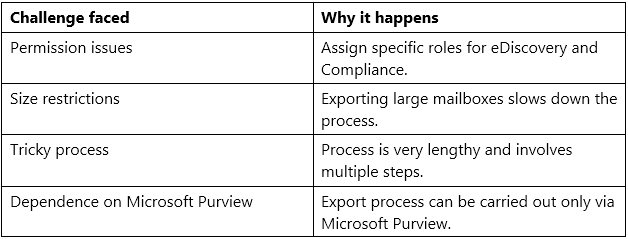
Limitations of the Native Export Method
Best Practices to Export Inactive Office 365 Mailboxes to PST Format
Admins must keep these things in mind to successfully export all the inactive mailbox data to PST format:
- Assign Permissions Properly: Make sure you’ve assigned the eDiscovery manager and Compliance Administrator roles to the correct admin. The Global Admin account doesn’t have these roles by default.
- Avoid Exporting Unnecessary Data: Unless actually necessary, don’t export spam emails and empty folders to avoid clutter.
- Verify the Retention Holds: Check once if the inactive mailbox actually has retention policy or not. Without any retention policy or legal holds, recovery might be impossible.
- Use third-party tools when required: If the native export process does not meet your requirements, opt for third-party solutions like Kernel Export Office 365 to PST Tool without any added risks of the native way.
Conclusion
Exporting inactive Office 365 mailboxes to PST is necessary to comply with legal holds and retention policies. Microsoft’s very own Purview portal offers a native way to export all the inactive mailbox data to PST format, but you need admin access for that.
Apart from that, it’s a lengthy process requiring proper configuration and planning to avoid any mistakes.
About the Creator
Claire Bowen
Tech-savvy and detail-driven, Claire shares insights on Microsoft 365, email migrations, and smart tools. Loves streamlining workflows as much as she loves coffee and a well-organized workspace.
Enjoyed the story? Support the Creator.
Subscribe for free to receive all their stories in your feed.
Comments
There are no comments for this story
Be the first to respond and start the conversation.