
How to Export Emails & Attachments From OST to Outlook PST
Learn simple and effective methods to export emails and attachments from OST to PST in Outlook. Convert your offline data for seamless access, backup, and transfer of your emails and files.

Quick recovery in cases of inaccessible or corrupted OST ( Offline Storage Table) files depends on a trustworthy OST to PST conversion tool. Two well-known programs that quickly help with this are emails. We go over the features and advantages of these tools below to assist you in selecting the correct answer for your situation.
Why Translate OST to PST?
Several reasons call for converting OST files into PST format:
- OST files can become corrupted for a variety of reasons, including malware attacks or unplanned system failures. Turning them into PST lets consumers get their data back.
- The matching OST file becomes orphaned whether an Exchange account is deleted or disabled. Turning it into PST facilitates access to important email records.
- Users could wish to copy data from one Outlook profile to another or back up their emails.
Methods for Exporting Emails & Attachments From OST to Outlook PST
One can create a PST file from an OST file in several ways. These constitute:
Method 01: Drag And Drop Emails To A Fresh PST File.
When transferring a few files from your mailbox to a PST file, this method is more effective. It will be necessary to generate a new PST file in Outlook and subsequently drag and drop each email into the PST individually. The following in-depth instructions will assist you in achieving this:
- Browse to the following: Home > New Items > More Items > Outlook Data File.
- To create a new PST file, select a location in the Create or Open Outlook Data File window, enter a file name, and click OK.
- A blank PST file will now be displayed in the Navigation Bar of Outlook.
- Drag and drop each email separately into this PST file, beginning with the first one. In addition, the utilization of folders enables the organization of emails within the PST file.
- Despite its simplicity and ease of use for individual emails, this method can be time-consuming if you wish to transfer a large volume of emails. In addition, this method is unsuccessful when the OST file is orphaned.
Method 02: Apply Import And Export Wizard
If you have access to your Outlook mailbox and the mail server is operational, you can use the Import/Export Wizard in Outlook to reproduce the OST file of your account in the form of a PST file. These procedures ought to be implemented:
- Work your way toward File > Open and Export by beginning in the top left corner of Outlook's main screen.
- To initiate the Export and Import Wizard, select either Import or Export.
- Select the "Export to a file" option in the wizard and then click “Next.
- Once you have obtained an Outlook Data File (.pst), select “Next.”
- Select your profile name from the folder list at the top, select "Include sub-folders," and click "Next" to export the entire mailbox. You may also select specific folders within your mailbox to transfer a restricted amount of data to the new PST file.
- To select the location to save the PST file, click Browse. From the Options menu, select a suitable option. Finally, click Finish.
- After clicking "Finish," you will be presented with the option to password-protect your PST. Enter a password or click "OK." This will initiate the export of mailbox data and generate a new PST file.
- Upon completion of the process, the new PST file will be a duplicate of the OST file associated with your Outlook account, including all attachments.
Method 03: Outlook Archive Function
Outlook's archive option, which aids in the reduction of PST, can also be employed to transfer files from OST to PST as a temporary solution. The process is as follows:
- Navigate to File > Info in Outlook.
- If you are using Outlook 2010 or 2013, navigate to Clean up Tools > Archive. In Outlook 2016, 2019, and 2021, you have the option to select File > Info > Tools > Clean up old items.
- Select the Archive from the folder and all sub-folder options. You have the option of selecting the folder from which to export your PST.
- If you wish to transfer mailbox data from a specific period to the PST, please specify a suitable date range at this time.
- To select a location for the PST file, click Browse. Subsequently, click OK.
Note: This method is not capable of transferring items from the Mailbox to the PST file, including calendar items and tasks outside of emails.
Export Emails & Attachments From OST to Outlook PST: Professionally
The TrustVare OST to PST Converter Tool is a user-friendly and risk-free solution that can be easily installed and is compatible with all versions of Windows, including 11, 10, 8.1, 8, 7, and XP. Their interfaces are designed to be user-friendly, allowing users to easily convert their OST files to PST format with a few clicks, without the need for any technical knowledge. The software is highly compatible and provides accurate results. The software is compatible with all versions of Microsoft Outlook. It is suitable for a diverse array of users, including both individuals and businesses. This software operates seamlessly with orphaned OST files. The converted PST files are stored in either new or existing folders. Users are permitted to convert a restricted number of email items per folder during the free version of the service.
Instruction to Follow
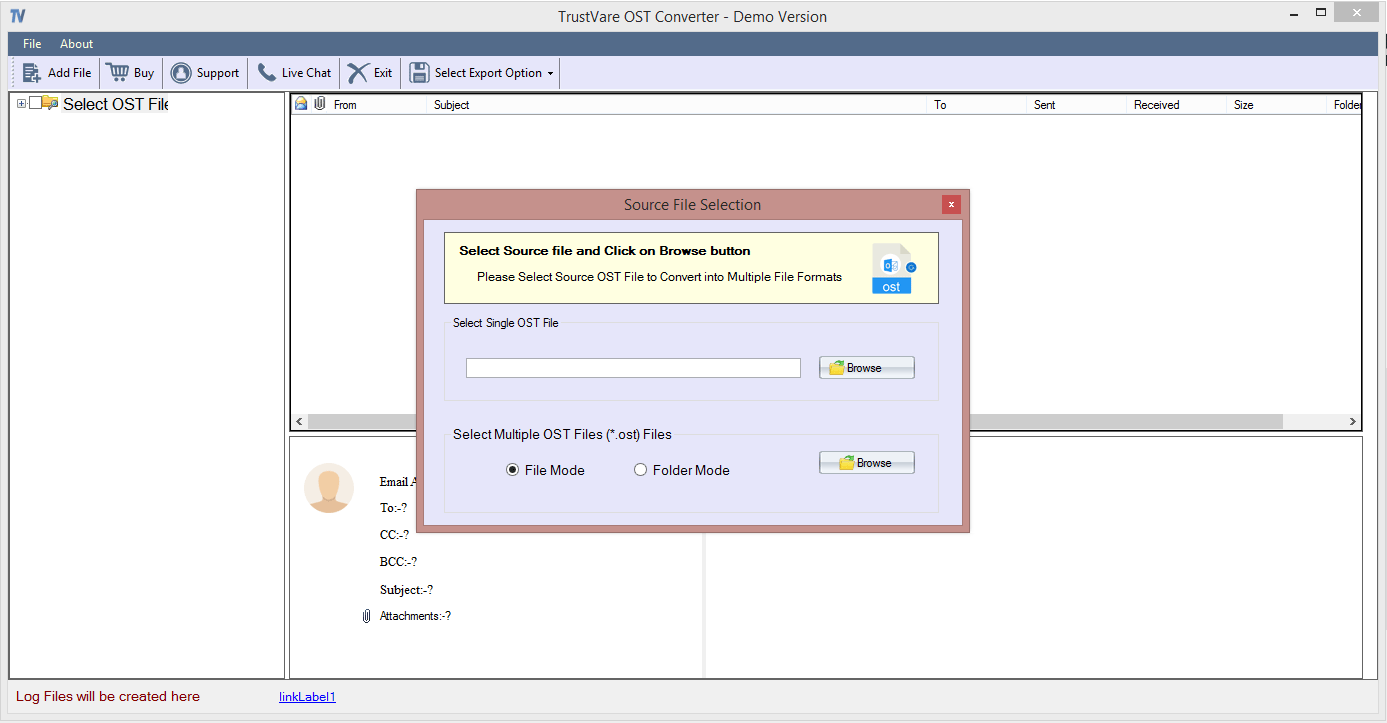
- Install the OST to PST converter tool.
- From the browser option, select an OST file or folder
- Go over the preview and decide which files you want to be converted.
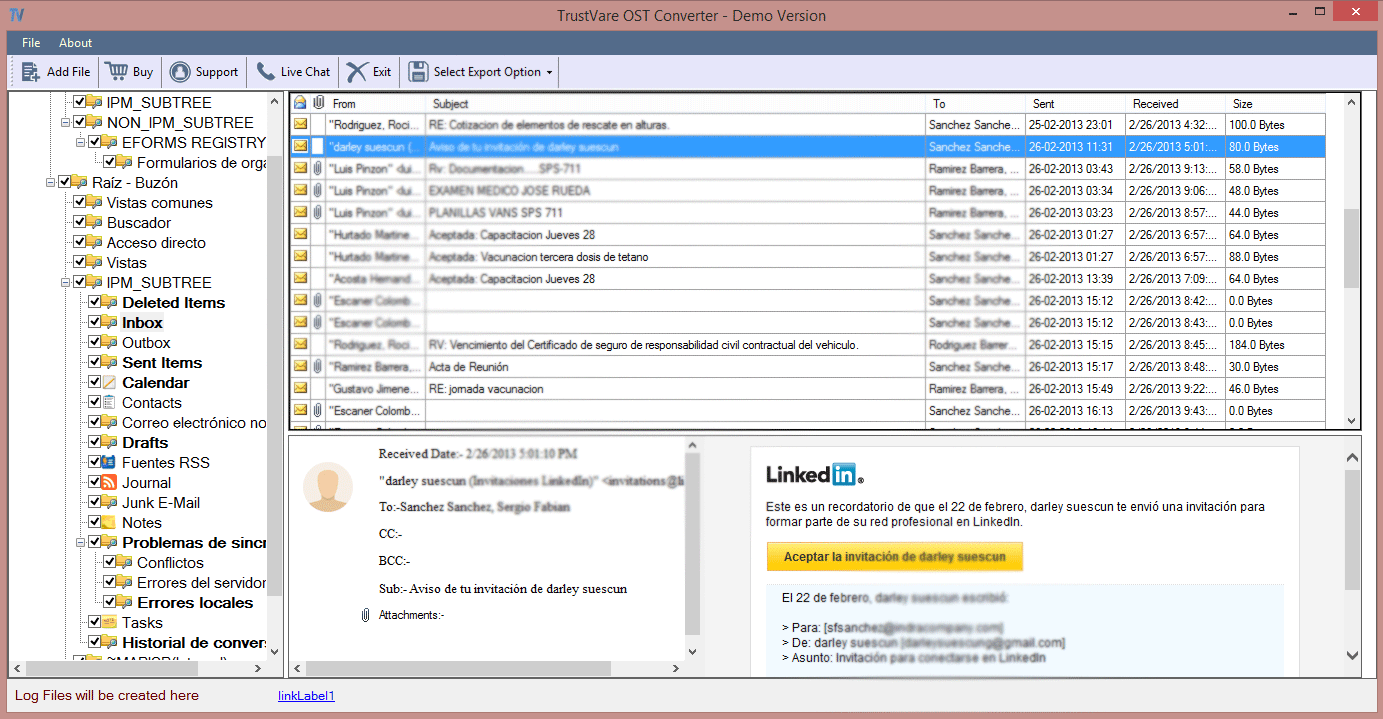
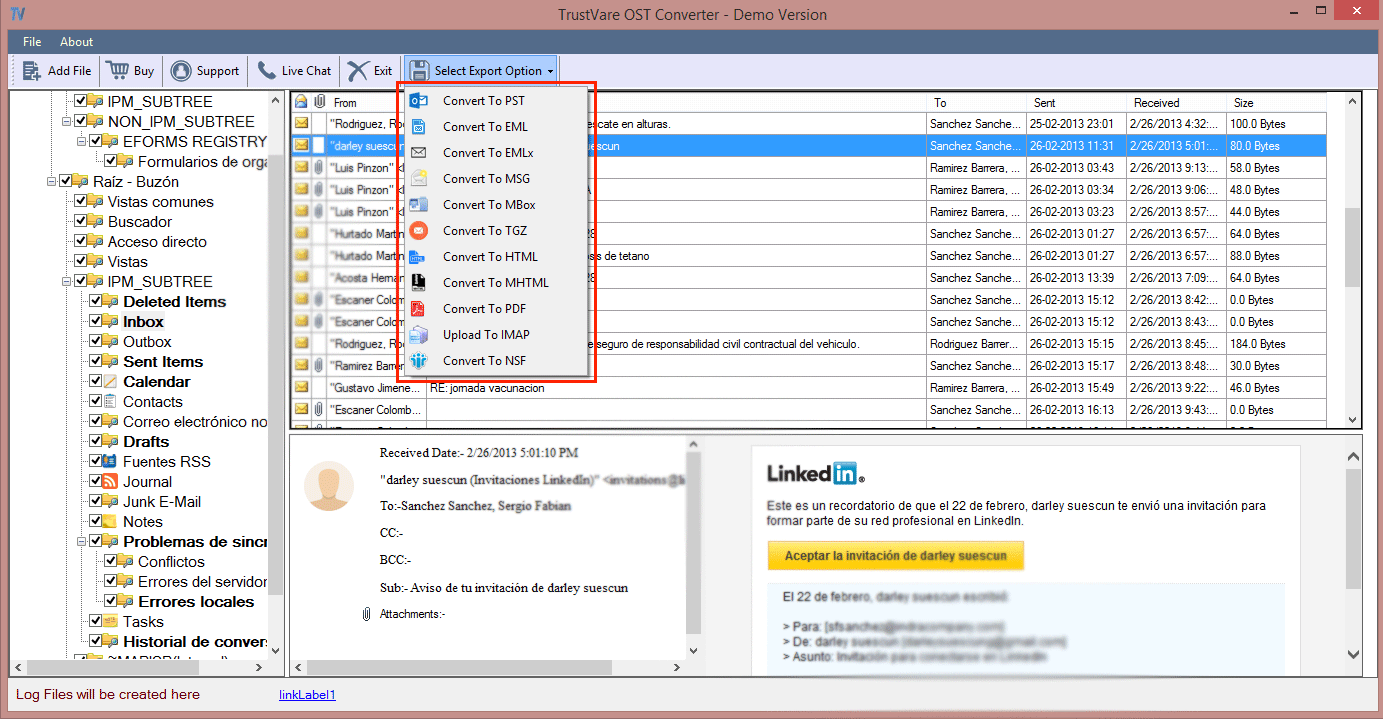
- Go with PST from the exporting options.
- Choose somewhere to save the PST file.
- Click on the Convert Now option.
In Summary,
There are many approaches for converting an OST file to a PST file, which includes all attachments. The Outlook Archive tool and the Import/Export Wizard can be employed to export the OST data to a new PST file if you have access to your Outlook mailbox. In the event that you are unable to access your mailbox, TrustVare OST to PST Converter enables you to extract mailbox data from the OST associated with your account. It is capable of extracting mailbox items from an orphaned or inaccessible OST file and generating a PST file that is easily portable, including all attachments.
About the Creator
Kevein Mark
I am a content writer. I like write blogs/ content related to technology.
Enjoyed the story? Support the Creator.
Subscribe for free to receive all their stories in your feed.
Comments
There are no comments for this story
Be the first to respond and start the conversation.