
Google Workspace Backup Made Simple: Save Data to Your Hard Drive
Easily back up Google Workspace data to your hard drive with this simple guide.

This piece will guide you through the process of backing up Google Workspace data onto a hard drive. The Google Workspace holds essential information, and it is widely utilized by professionals across various fields. To safeguard your data from any unforeseen issues, it's essential to create a backup of your Google Workspace email on an external hard drive.
Intro
Google Drive stands out as one of the leading applications offered by Google Workspace, allowing you to store your data, share it with others, and manage your personal information seamlessly. It has gained greater recognition compared to other storage options like USB external hard disks, USBs, and pen drives. Nonetheless, Google Drive stands out as the most secure choice. It is essential to regularly back up important data from Google Drive to a hard drive to avoid any potential loss.
Backing up your Google Drive data to an external drive offers a significant safeguard for your files, helping to shield them from viruses and potential damage. If you're looking to store your Google Workspace data on a hard drive, we have the perfect solution for you.
Reasons for Users to Save Google Workspace Data to a Hard Drive
Numerous reasons exist for transferring Google Workspace data to a hard drive on your PC.
- Backup files from Google Workspace Drive or Google Drive play a crucial role in recovering data following any loss or errors that may occur.
- After you have given access to third-party software, there is a possibility that the information may be modified or removed. As a result, the backup file will quickly restore all the emails in just a few minutes.
- It serves as a safeguard for all data on the drive, ensuring it's available for future reference.
- In specific scenarios, the backup file can help keep track of employee promotions or document employee departures after experiencing data loss from Google Drive.
- With a backup that includes Drive files, users can access their data without needing to connect to any other location.
- Occasionally, an unexpected interruption or sudden termination may lead to the loss of data.
There are several reasons to save Google Workspace data onto your hard drive. Let’s start by exploring ways to back up data from Google Drive or Suite Drive using both manual and professional techniques. If you're looking to create a backup for the PST file, you can refer to the detailed guide on how to export Google Workspace emails to PST format. With these techniques, you can save Google Workspace data to your external hard drive.
Method 1: Backup Google Workspace Data onto a Hard Drive with Administrative Privileges
A Google Workspace or Google Workspace admin account comes with a feature that allows users to export data, facilitating the backup process. Moreover, it may lead to several adverse effects! Take a look at them. The tool is unable to back up the user account that was created for a duration of up to 24 hours. If Administrator privileges are lost, the data export tool will cease to operate right away.
- Launch your favorite browser and sign in to the Google Admin Console.
- After entering the Google Workspace email address, click "Next."
- Click the next button after entering your Google Workspace account password.
- Next, you'll be directed to the dashboard of the Google Admin Console.
- In the Google Admin Console Dashboard, locate the (<) icon and click on it.
- Select the export data option from the Tools menu.
- Finally, you can click the “Start Export” button to begin this backup program.
- Ultimately, you'll gain clarity on the status of the Google Workspace Google Drive Workspace backup.
By adhering to the outlined steps, you can effectively create a backup of your Google Workspace data on your hard drive. Yet, it is widely recognized that coins possess dual aspects. This approach presents certain challenges, including a backup process that can extend up to 9 days, making it difficult to manage effectively. Choosing the right Google Workspace drive backup tool is advisable to navigate the extensive procedures effectively.
Method 2: Simple Steps to Backup Google Workspace Data onto a Hard Drive Professionally
TrustVare IMAP Backup Software stands out as a reliable and comprehensive tool crafted to make the process of backing up IMAP emails to local storage effortless. It supports multiple formats, including PST, EML, MBOX, PDF, and others. This software ensures that every aspect of your emails is preserved, from attachments and metadata to folder organization, ensuring a smooth and secure backup experience. Featuring an intuitive interface, it serves both technical and non-technical users alike, simplifying the process of backing up data from any IMAP-enabled email account, such as Gmail, Yahoo, Office 365, and more. The software provides targeted email backup through sophisticated filters, allowing users to preserve only the necessary information. It enables batch processing and ensures rapid performance while maintaining data integrity. This software offers a dependable option for individuals looking to protect their email data from potential loss or facilitate seamless migration to different platforms.
Steps to follow
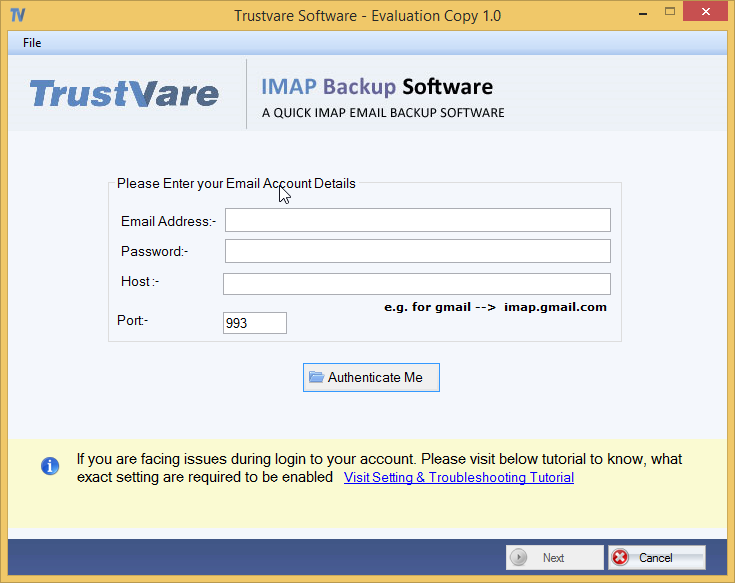
- Start by downloading and opening TrustVare IMAP Backup Software.
- Now, kindly enter the login details for your cloud account.
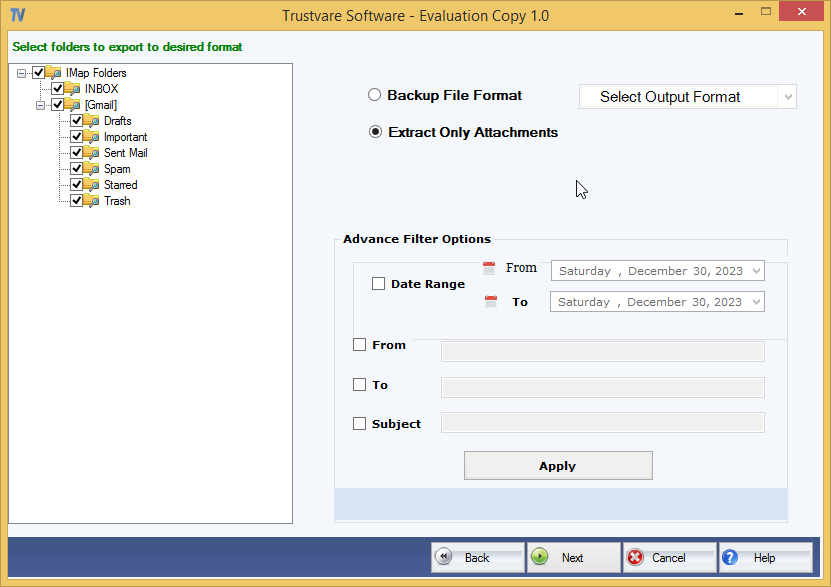
- Next, select the data you wish to back up and decide on the file format for saving the backup.
- Select the Browse button and pick the destination where you wish to retrieve the backup files.
- After that, hit the Backup Now button.
In Summary
The details provided will help you grasp the global utilization of Google Drive. In addition to the uses we've explored, we've also highlighted several of the most frequent reasons for manually backing up Google Workspace data to a hard drive. The manual method is expected to require around 9 days to finalize the backup process. For anyone needing an immediate backup of their Google Workspace Google Drive, it's advisable to utilize reliable and secure software designed specifically for saving Google Workspace data to a hard drive.
About the Creator
Kevein Mark
I am a content writer. I like write blogs/ content related to technology.
Enjoyed the story? Support the Creator.
Subscribe for free to receive all their stories in your feed.
Comments
There are no comments for this story
Be the first to respond and start the conversation.