
02 Simple Way to View/Open EML File in Microsoft Outlook 2007
Outlook 2007 is a widely used email client that is popular for its user-friendly interface and powerful features. However, if you receive an EML file in Outlook 2007, it can not be immediately visible or accessible.
EML files are a common file format used for email messages, and you can need to view them in Outlook 2007 for various reasons. In this blog post, we will discuss two simple ways to view EML files in Outlook 2007 using Mailvita EML to PST Converter Software.
Manual Method to View EML Files in Outlook 2007
Let's first talk about the manual approach of viewing EML files in Outlook 2007 before moving on to the technological approach. Opening the EML file in a text editor and pasting the information into a brand-new email in Outlook 2007 constitute a manual process.
The steps are as follows:
- Find the EML file on your PC in step 1.
- Use the Open With menu when you right-click on the EML file to pick a text editor, such as Notepad.
- Copy the EML file's content.
- Launch Outlook 2007 and start a new email.
- Paste the EML file's content into the brand-new email message.
- Include the addressee, subject, and any additional information that is required.
- Press Send to finish sending the email.
Despite its apparent simplicity, the manual process has numerous shortcomings. For instance, opening each EML file and transferring the information might take some time if you have several of them. Additionally, the duplicated content could not have any attachments that are present in the EML file.
A Different Way to View EML Files in Outlook 2007
Using the EML to PST Converter for Mac Tool is the technical way of view/Open EML files in Outlook 2007.
Here are the steps to follow:
- Download and install a reliable EML to PST Converter tool on your computer.
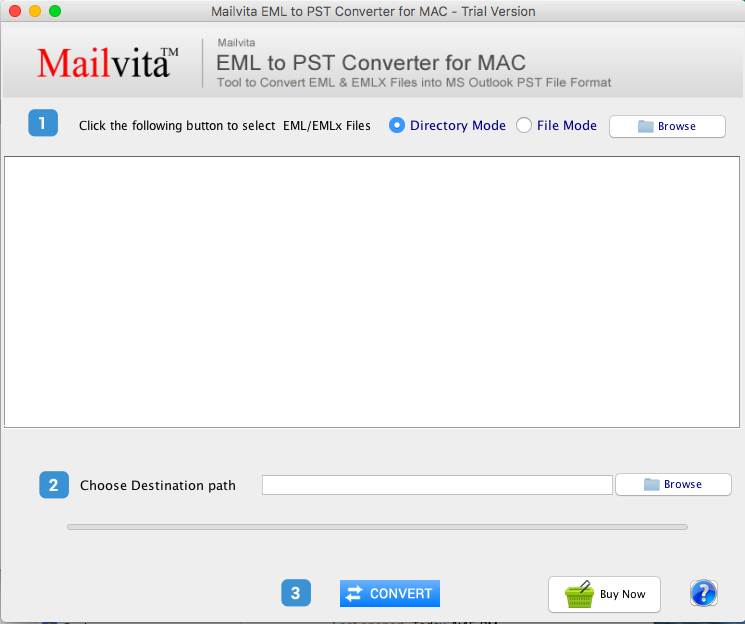
- Launch the software choosing Directory Mode or File Mode. Click on Browse Button.
- Preview the EML files to ensure that all the data you want to convert is present and accurate.
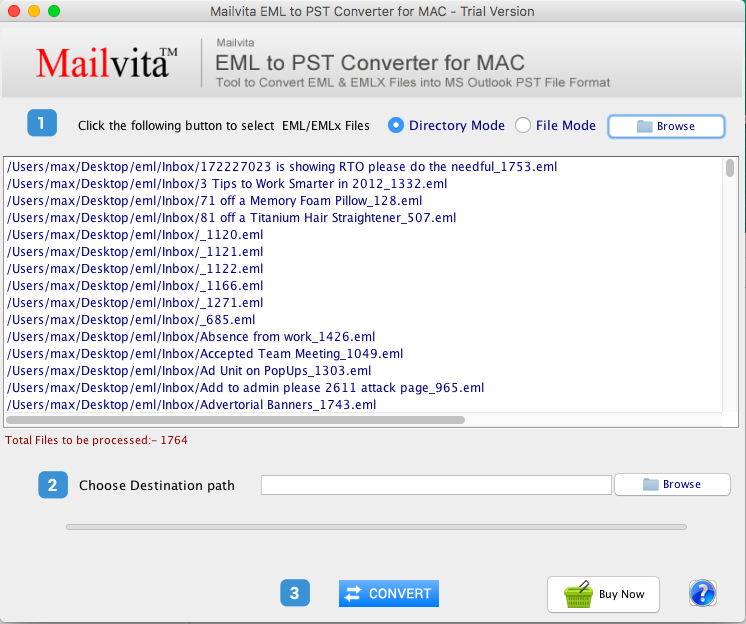
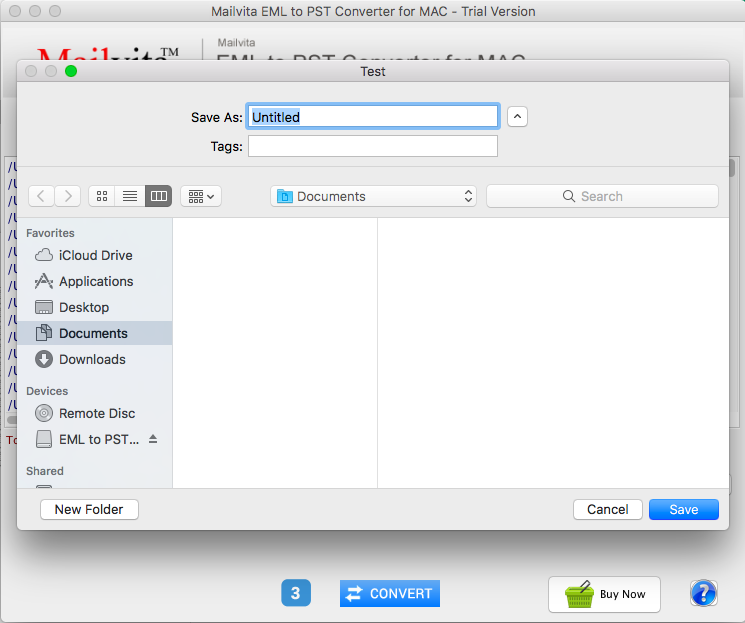
- Choose the destination path where you want to save the converted PST file. Press the browse button.
- Click on the “Convert” button to start the conversion process.
Why Choose the Technical Method
Taking the manual method can appear simple, but it is not always the best choice. The information technology method, which employs EML to Outlook Converter, has a number of benefits over the manual method. The following are some arguments in favor of picking the technical method:
- Efficiency: EML files to PST conversion can swiftly and easily convert a number of EML files to PST format, saving you time and effort.
- Accuracy: The utility makes sure that no data is lost or corrupted as it is correctly stored and converted to PST format.
- Selected Conversion: The Windows Live Mail to PST Converter includes a selective conversion function that enables you to pick which EML files or folders you wish to convert to PST format.
- Preview Option: To make sure you are converting the right files, the application offers a preview function that lets you inspect your data before conversion.
The Advantages of Using Windows Live Mail to PST Converter Technically
By utilizing the dependable and user-friendly Windows Live Mail to PST Converter program, you can see your EML files in Outlook 2007. The software's sophisticated procedures make sure that your data is transferred to Outlook safely, without any loss or harm of any type.
Use EML to PST Converter for the reasons listed below:
- The first reason in support of converting from EML to PST is that although an EML file only maintains one email, a PST file retains the whole contents of the mailbox. As a result, you can easily export and recover your mailbox data from a PST file.
- A PST file functions better with Outlook than an EML file. Therefore, in order to migrate the data, you must convert EML to PST files.
- If the Outlook PST file becomes corrupt, you can use additional ways like the built-in scanpst.exe tool to fix it. Data recovery from an EML file is difficult, though.
Read More: Import EML to Outlook 2019
Conclusion
Accessing email messages and other data requires the ability to view EML files in Outlook 2007. The manual method could be effective for a small number of files, but it is ineffective when dealing with many files. To see EML files in Outlook 2007, use the practical technique of employing EML to PST Converter. Without any data loss or damage, the application offers a safe and secure solution to move your data to Outlook. It is user-friendly, and effective, and provides cutting-edge technologies that simplify the converting process. For a hassle-free converting procedure, utilize EML to PST Converter if you need to read EML files in Outlook 2007.
About the Creator
Enjoyed the story? Support the Creator.
Subscribe for free to receive all their stories in your feed.
Comments
There are no comments for this story
Be the first to respond and start the conversation.